How to print maps and courses
Condes can print maps and courses on almost any Windows printer. You can print draft maps for vetting, or you can print multiple maps on the same sheet of paper for “mass production” competition maps.
Test prints or proofs: Printing from the Course Layout Editor
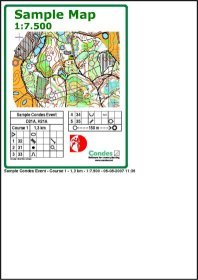
You can print directly from the Course Layout Editor by simply clicking the print icon in the toolbar. This is intended for test prints or proofs for vetting. Condes puts a date and time stamp on these prints, so that you can keep track of when the printout was made.
You can choose between printing
- the full map area,
- an area that is cropped to fit the course, or
- the area that you have defined as Layout Frame.
You can preview the printout on the screen before printing. Use the File menu, then select Print Preview.
Competition maps: Printing from the Print menu
When printing competition maps, you want to use the Print menu. Printing from the Print menu gives you more options for the layout, and is intended for final printing. Use the Print menu, and then select Maps with Courses.
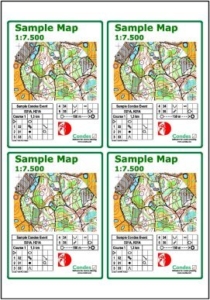
- You can print one map on each page, or you can put more maps on the same page to save paper.
- You can fill the page with copies of the same course, or you can print different courses on the same page.
- You can align the printout to the top left corner of the page, or you can center the printout on the page.
At the top of the dialog, the canvas selector controls where the maps are printed from. There are two options:
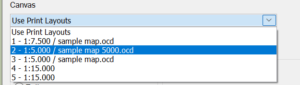
- Use Print Layouts (the default) prints each course according to the Print Layouts configured for it in the Course dialog. Each layout is printed from its own canvas, at that canvas’s printout scale and with that canvas’s graphics layout. The course list shows each course with its Print Layouts and which canvas each layout prints from. In a single print run you can therefore print courses placed on different canvases, the same course at different scales for different classes, and parts of a course that leaves a map and comes back, combined on the same map. Print Layouts are new in Condes 11.
- A specific canvas prints the selected courses from that canvas only, using its map, printout scale and graphics layout. Print Layouts are ignored.
To print a Blank map, a Blank map with course overprint symbols, or All Controls, select a specific canvas in the canvas selector. These items are not shown in the course list when Use Print Layouts is selected.