In addition to adding graphics, you can also place texts on the canvas.
1.Use the New Text tool  on the Course Symbols toolbar.
2.Click on the map where you want to place the text
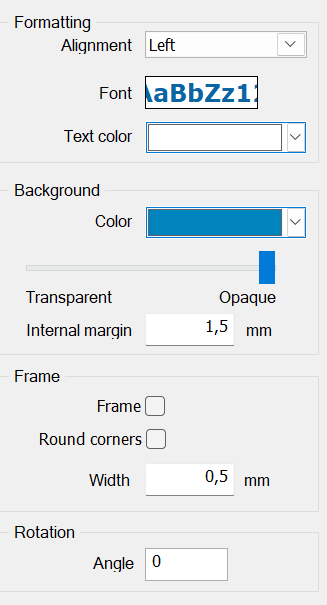
3.A Text Dialog appears. This dialog lets you enter the text and format it (font, alignment, etc)
A way to show your support for Condes is to place a Condes logo on the map.
•Use the New Condes Logo tool  on the Special Symbols toolbar. Thanks in advance for supporting Condes!
Rotate text objects
Text objects can be rotated, and the background color can be configured.
|
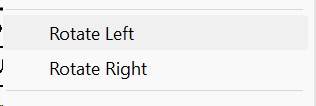
Use the right-click menu to rotate the object to a right angle
Use the rotate tool |
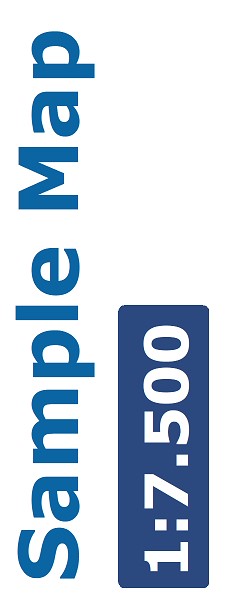
 to rotate the object to any angle
Text background
Use the text object's properties dialog to configure the text color and the background color. The background can be transparent. Make sure to drag the slider to "Opaque" when you add a background color. |
|