- a feature for printing with advanced course setups on multiple canvases.
Print Layouts allow you to define multiple layouts for the same course—for example, when you need to print the course at different map scales, on different maps, or from multiple canvases on the same sheet of paper.
So, if you have ONE map and print that map at ONE scale, you do not need to consider Print Layouts.
What is a Print Layout?
Each course has one or more Print Layouts, and each layout defines how that course—or parts of it - will be printed.
A Print Layout controls:
•Canvas selection — which canvases the course can be printed on (useful when different classes require different scales).
•Course‑part grouping — which course parts should be printed on the same map (e.g., when a course leaves a map and later returns).
•Canvas assignment — which canvas each course part should use (important when a course spans multiple maps).
Courses without map exchange
For a course that does not use map exchange, a Print Layout simply connects the entire course to a canvas.
If you need the same course printed on more than one canvas—such as at multiple scales—you can add additional Print Layouts, each linking the course to a different canvas.
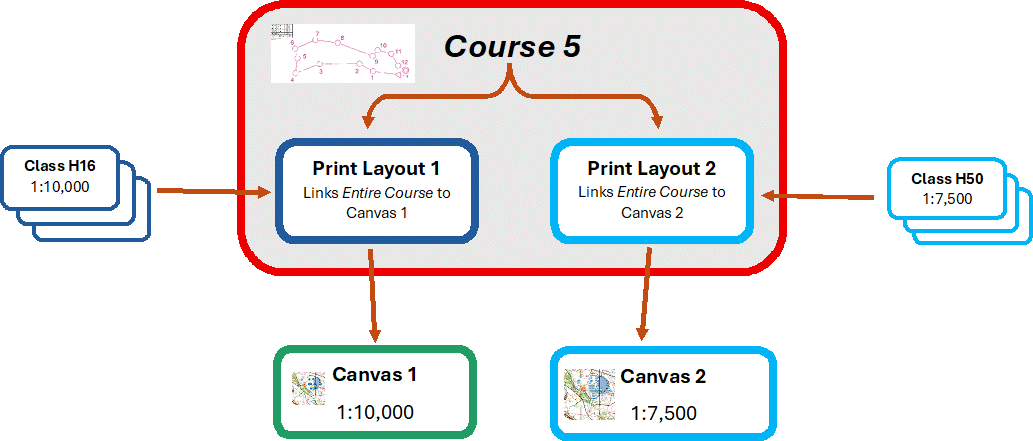
Courses with map exchange
For courses with map exchange, each Print Layout connects one or more course parts to a canvas. This defines exactly which canvas each part should be printed on.
You can:
•Add multiple course parts to the same Print Layout to print them on the same map.
•Create multiple Print Layouts so that all course parts are covered.
This gives full control over how multi‑map courses are printed.
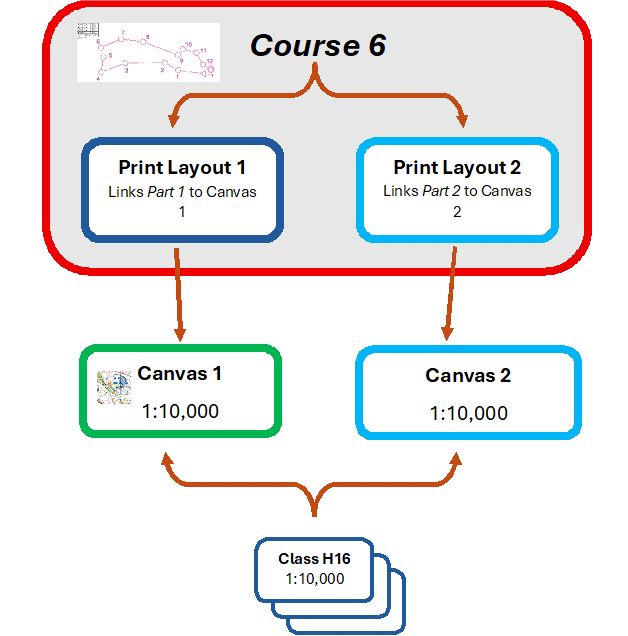
How classes (age categories) use Print Layouts
A class is linked to a course and assigned a preferred map scale (e.g., 1:7,500).
Condes automatically matches the class to the Print Layout that corresponds to that scale.
This ensures each class gets the correct map version without manual intervention.
Printing maps from different canvases in one operation
When printing or exporting maps and courses, Condes shows a list of courses and their Print Layouts.
For each Print Layout, Condes displays:
•Which canvas the layout prints on
•Which classes use that layout
This makes it easy to print all required maps—even from different canvases—in a single operation.
A couple of practical cases
We'll now go through a couple of work-flows to show how this works.
Case 1: Print multiple parts on the same canvas
How do I manage a course with two map exchanges. The course starts on one map, continues on a second, and comes back onto the first map. Can I have the final part printed on the same map as the first part, or do I need separate maps?
Consider this example of a course, e.g. "Course 1", with two map exchanges. The course has three parts, and you would like to print parts 1 and 3 on one map, and part 2 on another map.
Part 1 and 3 |
Part 2 |
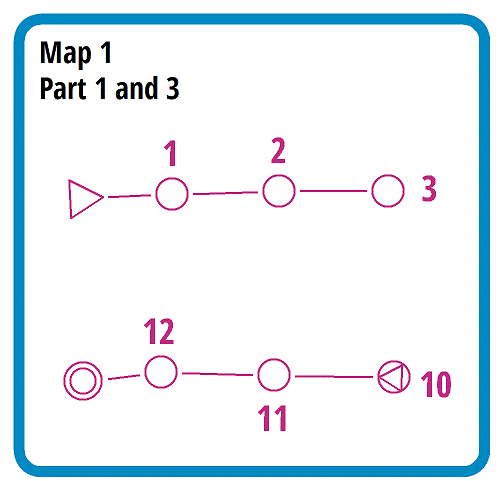
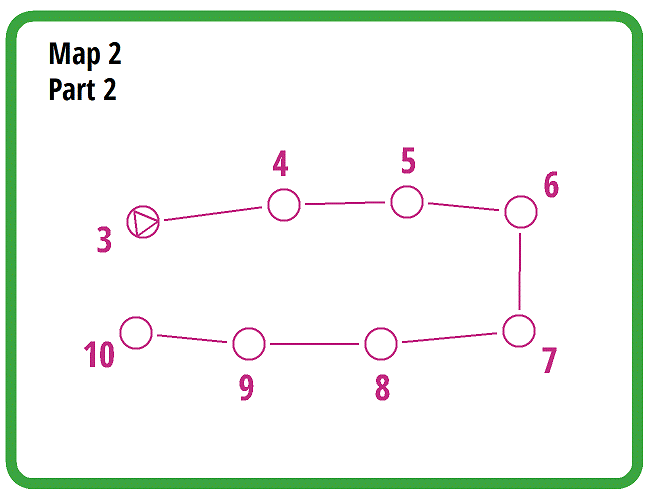
In the Course Dialog for "Course 1", configure print layouts:
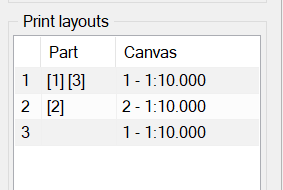
This example has TWO Print Layouts configured, 1, and 2. (The third line is there for you to add a third layout if needed). The configuration has both layouts to be printed on the Canvas 1 map, 1:10,000. It is possible to choose a different canvas as needed.
When printing (Print Maps and Courses dialog) and exporting (Export to PDF dialog), the layouts will be available to print, when you choose "All Canvases" in the Canvas selector:

For Course 1, the print/export dialog will show the two Print Layouts, ready for printing.
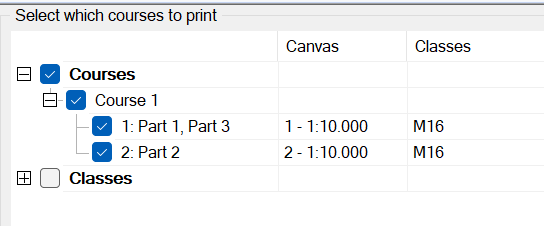
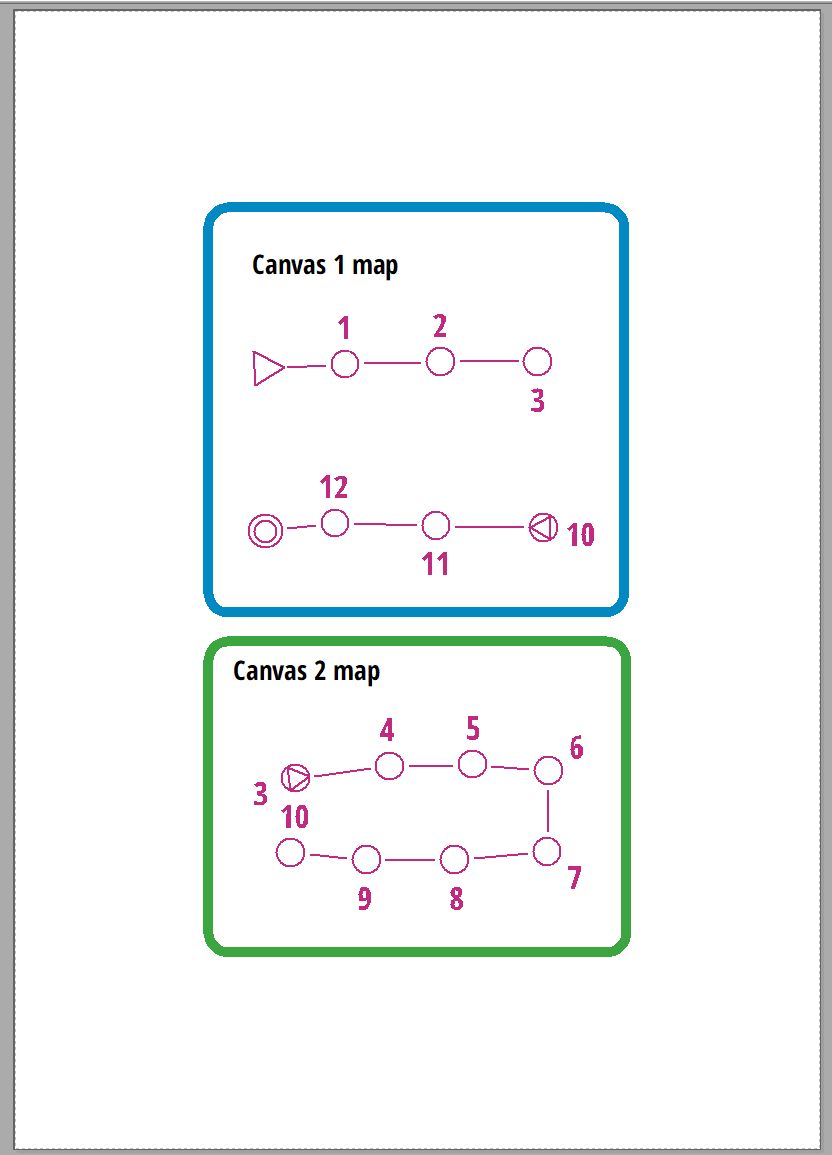
The output then looks like this, as both layouts fit on the same page:
Case 2: Handling different print scales for the same course
Can I print the same course at 1:10,000 for M16 and at 1:7,500 for M55?
Yes - and the most effective way to do this is to use two separate canvases. Each canvas can reference the same map file or its own map file at the required scale.
Working with two canvases lets you tailor the graphic layout to each map size, which is especially useful when margins, legends, or control descriptions need different placement.
Once your maps and courses are set up, configure the print layouts so each canvas outputs at its intended scale. This ensures both classes receive the correct map scale while still sharing the same underlying course.
Here is how to set up Print Layouts for the course:
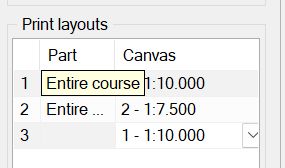
And, when printing, using Print / Print maps with courses ..., you have both layouts available:
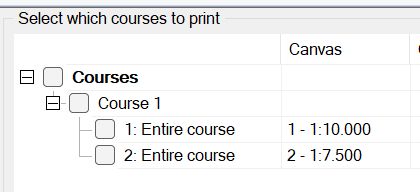
Now, let's consider the classes. Each class has a "preferred print scale", so you can configure M55 to use !:7,500 and M16 to use 1:10,000. This is done in the Classes spreadsheet.
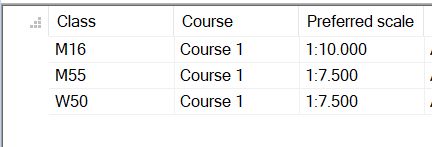
Having configured a preferred scale, each class is automatically assigned to a canvas that prints at the preferred scale.