To avoid covering details on the map, you can cut gaps in the course leg line between two controls.
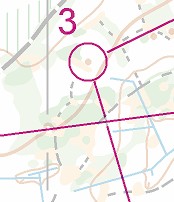
Automatic cutting of crossing leg lines
|
When two course leg line intersect each other, one of the lines will be cut automatically. Similarly, a course leg line that overlaps with a control number is automatically cut.This feature can be enabled/disabled in the Additional Dimensions and Fonts dialog. |
Manual cutting of leg lines
There are two ways to cut a gap in the line. In both cases, start by selecting the relevant course leg, and activate the Cut Segment tool  .
You can cut
1.A 1 mm gap
Click on the course leg line where you would like the center of the gap
2.A flexible length gap
Click and hold the left mouse button where you would like the start of the gap, then drag the mouse to the end of the gap, and release the button.
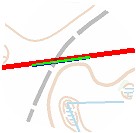

Small rectangular "handles" indicate the ends of the gap. You can adjust the gap by dragging either handle.
To remove the gap, refer to How to remove a gap in a course leg line