There may be cases where you don't need the full extent of the map. An example could be when you have a very large map that covers much more than you need for the current event. In such cases, it can be useful to crop the map image.
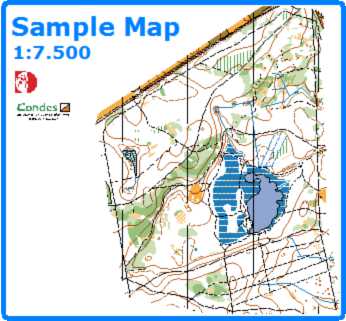
Condes can crop the map. You can crop from all sides of the map image rectangle - the cropped image remains as a rectangle.
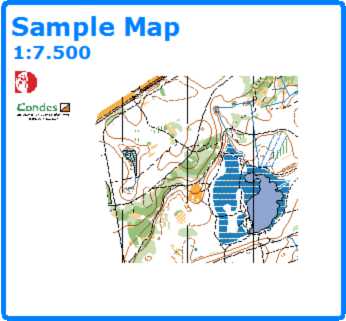
There are two ways to perform cropping of the map:
Method 1:
1.Select the "Select Graphics Object" tool  in the Course Layout Editor, then click on the edge of the map to select the map.
2.The map now has "selection handles" at the corners and at the edges.
3.Crop the map by dragging these handles.
Method 2:
1.Use the menu Canvas / Map to get the Setup Map dialog, then click on Details...
2.You can specify (in mm) the crop distance from each side of the map.
An alternative to cropping the map is masking the map.